Reset password
If you don’t remember your password,
Step 1 - Use the forgot password button to reset your password.
Step 2 - Email verification
Enter your registered email address and click ‘Send code’. If the email you have entered is registered on Cloodot, you will receive an OTP as an email. You may click on the ‘Reset your password’ button (in the email), enter a new password and then click ‘Update’ or

copy the code and paste in the OTP input field, enter a new password and then click ‘Update’.
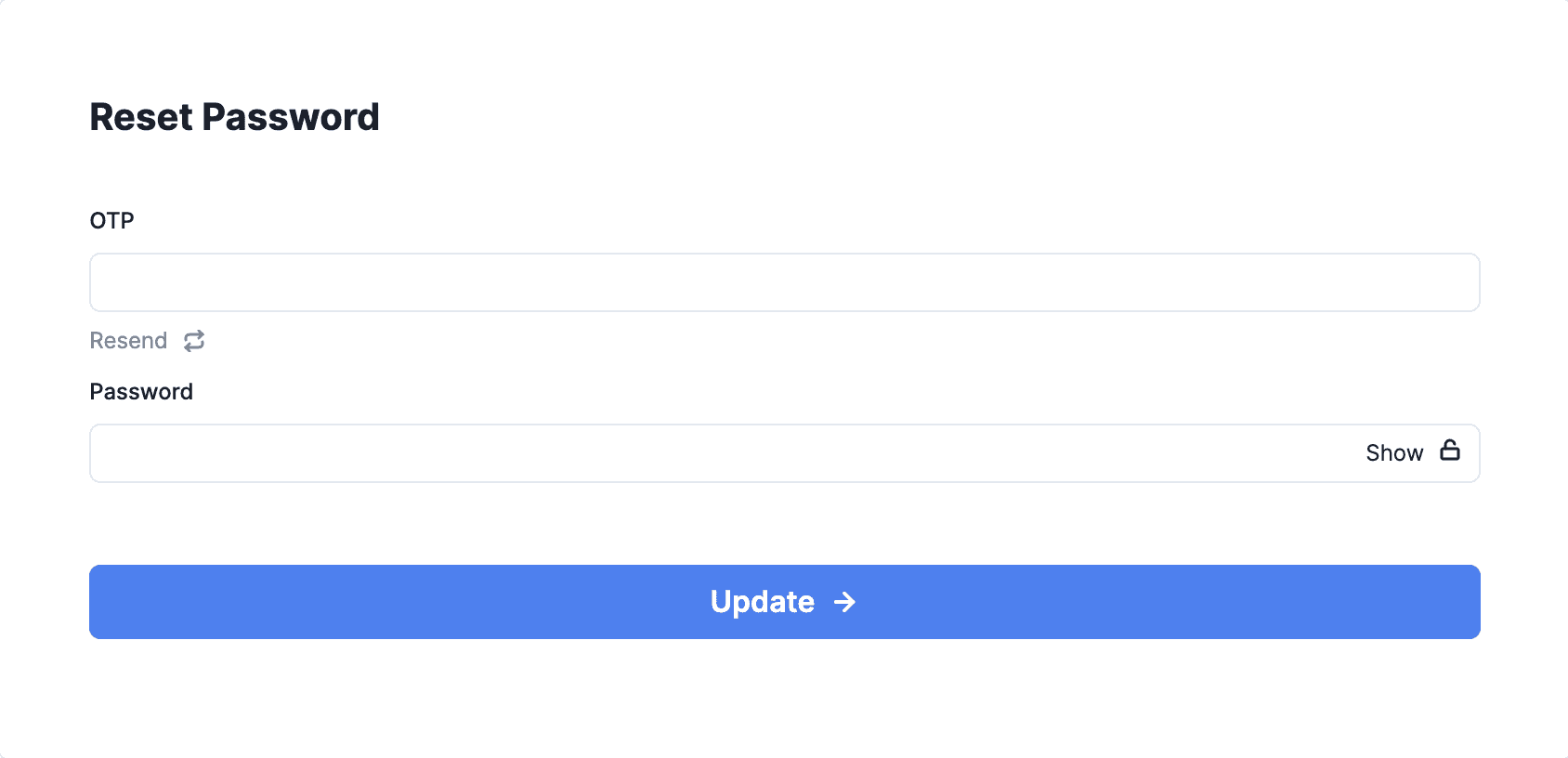
**Password requirements - Minimum 10 characters, At-least 1 uppercase letter, 1 lower case letter, 1 number and 1 special character
If you have not received the code, you could use the resend button to get a new email with the code.
Troubleshooting - If you have tried resend option multiple times but have not got an email from Clodoot with the code, please contact your IT team and request them to add cloodot.com and its subdomains to firewall and email client whitelists. You could contact hello@cloodot.com if problem persists.